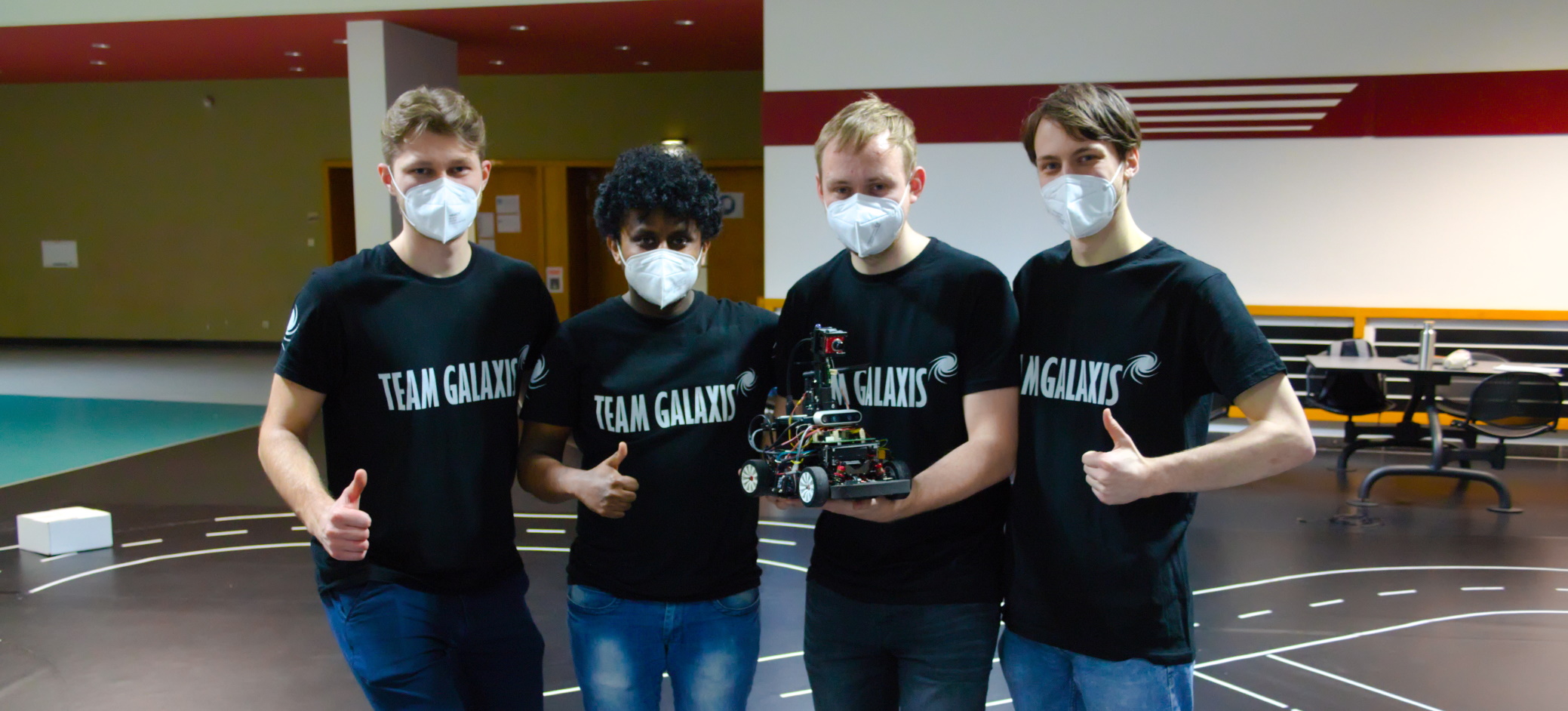
Carolo Cup 2022 Team
Folderstructure
.
├── docs # Documentations and third-party documentation tool configuration files
├── messages # ROS2 GalaXIs custom messages
├── nodes # GalaXIs ROS2 nodes (Autopilot, Controller Node, ...)
├── scripts # Useful scripts (start development environment, clang format, ...)
├── simulation_adapter_messages # ROS2 custom messages for simulation integration
├── test # Unit tests (disabled)
├── tools # Useful self-implemented programs for Map Plotting, ...
├── utilities # GalaXIs Library supporting the nodes
├── ...
└── README.md # This README
Getting Started
Setup Development Runtime Environment (GalaXIs docker)
- We recommend to use Ubuntu or Manjaro as Operating System
- Install Docker: https://docs.docker.com/get-docker/
- Clone this repository:
$ git clone git@git.rwth-aachen.de:team_galaxis/carolo-cup-2021.git
- (Download and) Start the docker environment as shown here:
$ ./scripts/start_docker --help
- Note: Using the
update flag, the newest container is downloaded if it is not already existing on your computer.
- Note: For Mac and Windows: Make sure the docker container has enough resources. These can be changed in the Docker Desktop App.
- Inside the docker container, run
./compile.sh (you may need to run it multiple times for it to succeed)
- You can start a node using
./run_exe.sh
Setup Development Coding Environment
Install Visual Studio Code:
- Ubuntu (recommended)
- Go to code.visualstudio.com and download the
.deb file.
- Install it via:
$ sudo dpkg -i <path-to-vscode.deb> (You may have to install additional packages via: $ sudo apt install --fix-missing)
- Linux Systems:
# i.e. for Ubuntu/Manjaro
$ sudo snap install --classic code
- Recommended useful Extensions for Visual Studio Code: C/C++, CMake Tools, Python, TabNine Autocompletion, Remote - Containers
Setup Simulation Environment (only Linux)
- Prerequisites: NVIDIA Container Toolkit
- Clone galaxis-simulation repository:
$ git clone git@git.rwth-aachen.de:team_galaxis/galaxis-simulation.git
- Build Simulation and Bridge (See README.md of galaxis-simulation repo):
$ cd galaxis-simulation
# build simulation
$ cd simulation
$ ./build_container.sh
# build bridge (for integration into GalaXIs software)
$ cd bridge
$ ./build_container.sh
- Start Simulation
$ cd simulation
$ ./start_container.sh
$$ ./start_simulation.sh
- Start Bridge
$ cd bridge
$ ./start_container.sh
$$ ./start_bridge.sh
- Start SimulationAdapter inside GalaXIs docker in tmux
./run_exe.sh SimulationAdapter
- Start RemoteControl inside GalaXIs docker in tmux
./run_exe.sh RemoteControl and have fun! :)
Software Architecture

Documentation
The current doxygen documentation of our C++ code can be found here.
Further useful docs
Marvelmind GPS
Motor Parameter Identification
- motor muss in leerlauf sein
- batterie ground zuerst connecten
- VESC tool verbinden
- motor settings
- general settings
- Read motor configuration (damit die grundsätzlichen werte stimmen, sind in Firmware schon richtig eingestellt)
- Refresh
- FWD (gucken ob die Richtung stimmt) -> zur not inverted [x]
- Motor Type -> FOC
- Sensort Port Mode -> ABI (A,B, Index Pulse) Encoder
- Write Motor Configuration
- FOC settings
- Sensor mode encoder (Encoder muss verbunden sein)
- Encoder-Tab -> Detect Encoder (wird die Puls Pins identifizieren)
- 1.00 A -> dann start detection
- Ratio muss 7.0 sein 14 Poliger Motor -> 7 Polpaare
- dann auf apply klicken -> datet die settings up
- General FOC Settings
- [RL] -> Measure resistance and inductance (Parameter müssen danach grün sein)
- Wenn Parameter rot -> strom ändern um 0.5A (plus oder minus) und wiederholen
- [Lambda] -> Measure flux linkage (parameter müssen grün sein)
- Wenn parameter rot -> ERPM um +500 erhöhen
- Wenn alles grün ist, dann apply
- Write motor configuration
- jetzt könnte man in experiments testen ob alles funktioniert (Use arrow keys + stream realtime data)
- unten in der leiste kann man RPM zB einstellen und im Plot gucken ob alles passt
- motor halten und irgendwas einstellen -> höherer strom
- App Settings
- General
- UART
- write app configuration
Jetson AGX Xavier
NVIDIA Linux Tegra
STM32
Car
- 18 zähne kleines ritzel
- 33 zähne achsritzel
- 38 zähne große Riemenscheibe (vermutl.)
- 20 zähne kleine Riemenscheibe (vermutl.)
- Übersetzung
Vges= 0.0595*Nmotor
ROS 2
ROS2 Buildtool
SSH/VNC
ssh -p 8001 galaxis@137.226.8.100- Klick here for AGX
systemctl start vncserver to start the vnc servervncviewer -quality 5 -encodings "copyrect tight hextile zlib corre rre raw" -compresslevel 5 137.226.8.100:9002 with password i********
SSH/RQT
ssh <ip> -XYC -c aes128-ctr
Git Stuff
Jetson TX2
update time on ubuntu system
- ‘sudo date -s "$(wget -qSO- --max-redirect=0 google.com 2>&1 | grep Date: | cut -d’ ' -f5-8)Z"`
- from update time & date from internet
- simply change ntp server settings to ntp1.rwth-aachen.de and ntp2.rwth-aachen.de
Format Code
Automatically
$ ./scripts/clang-format.sh /path/to/dir/to/format
Manually
- install clang-format (>=9.0.0) and check if .clang-format file is in root folder of this git repo
- to format your code run
clang-format -i filename.xyz
RealSense
- Filter application order:
There are no software-imposed constrains that mandate the order in which the filters shall be applied
- Order used by realsense library/demos:
Depth Frame >> Decimation Filter
>> Depth2Disparity Transform** -> Spatial Filter >> Temporal Filter >>
>> Disparity2Depth Transform** >> Hole Filling Filter >> Filtered Depth
KITCAR GAZEBO SIMULATION
- Clone galaxis-simulation Repo
- Build and Start Simulation and Bridge (See
README.md of galaxis-simulation repo)
- Start SimulationAdapter
- Start RemoteControl (have fun)

 1.8.17